A website AI chatbot should help a customer finish a service task or reach a person who can. Installing a chat button is the visible step; useful service depends on answers and routing. The rollout starts with one task and ends with a tested customer outcome.
Key Takeaways
- Choose one customer task and a human handoff before selecting pages or a widget design.
- Configure the website channel, approved knowledge, and routing; then use the platform’s current installation method.
- Test the complete conversation on desktop and mobile, and measure resolution alongside starts and handoffs.
What Is an AI Chatbot for a Website?
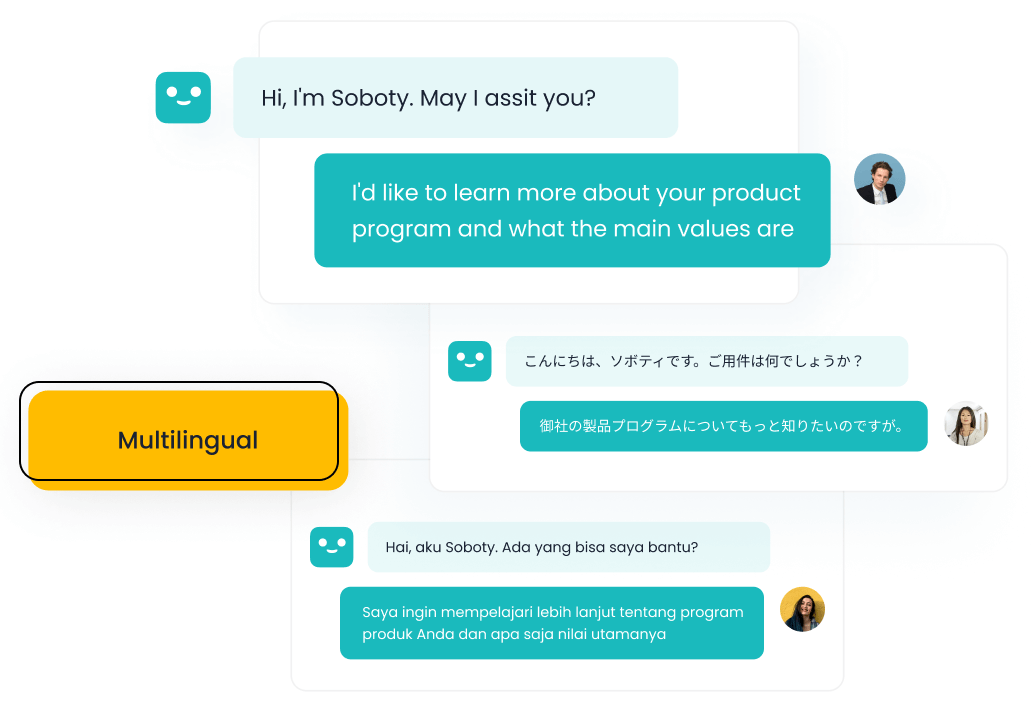
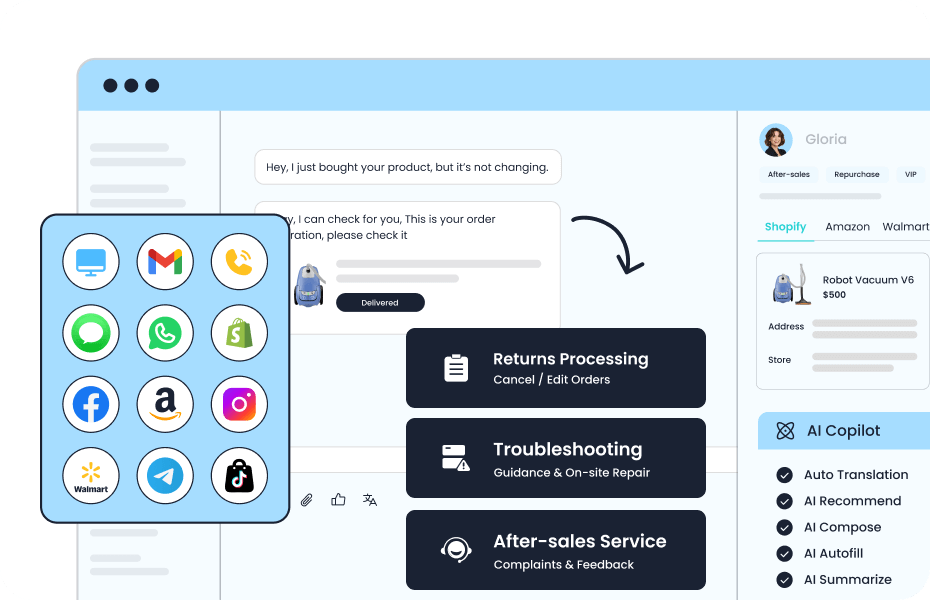
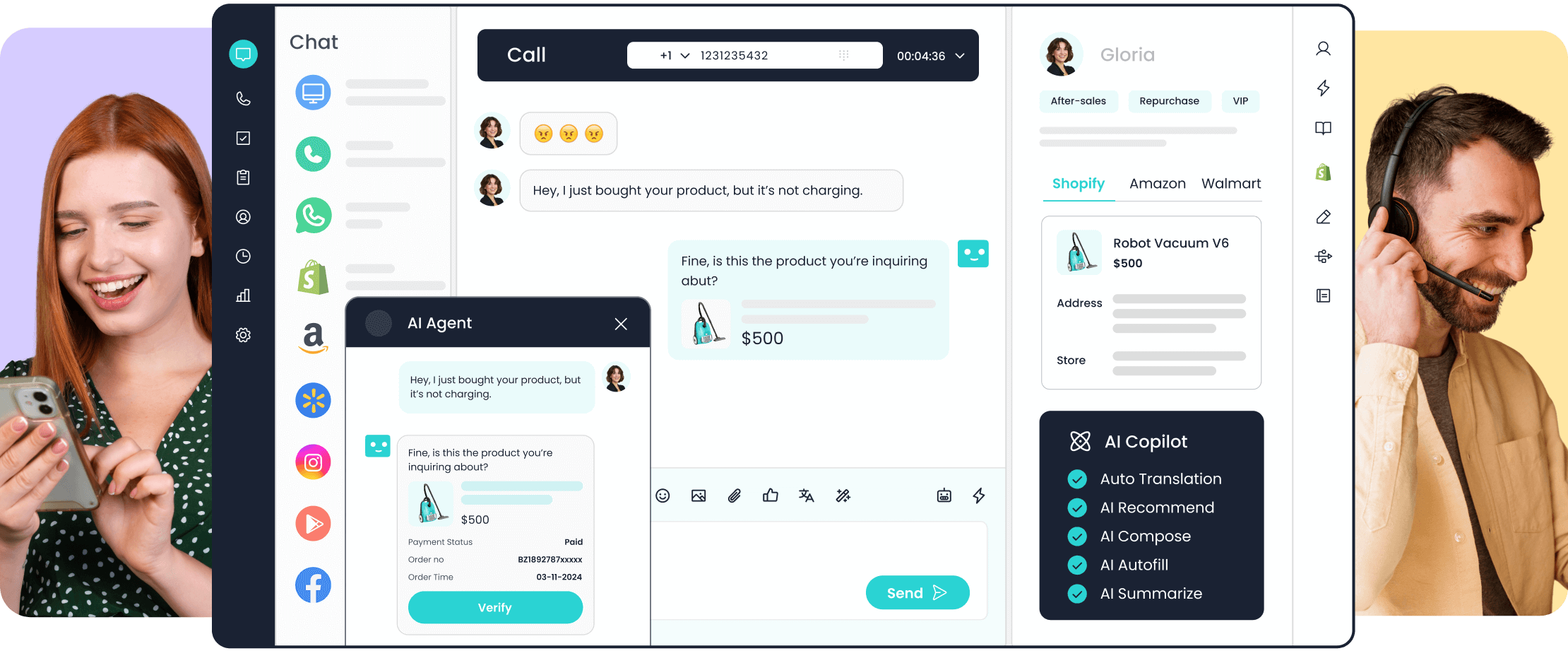
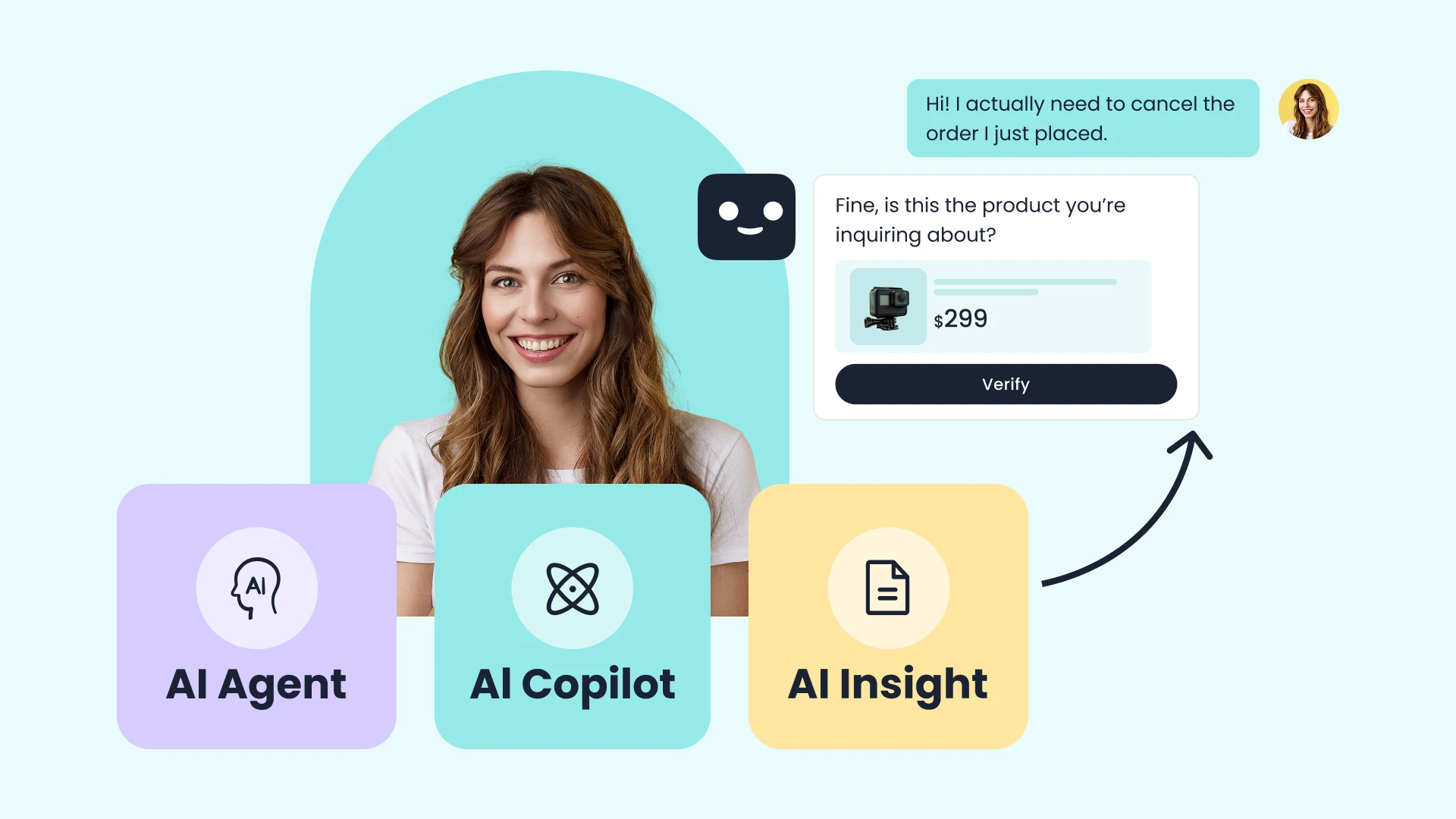
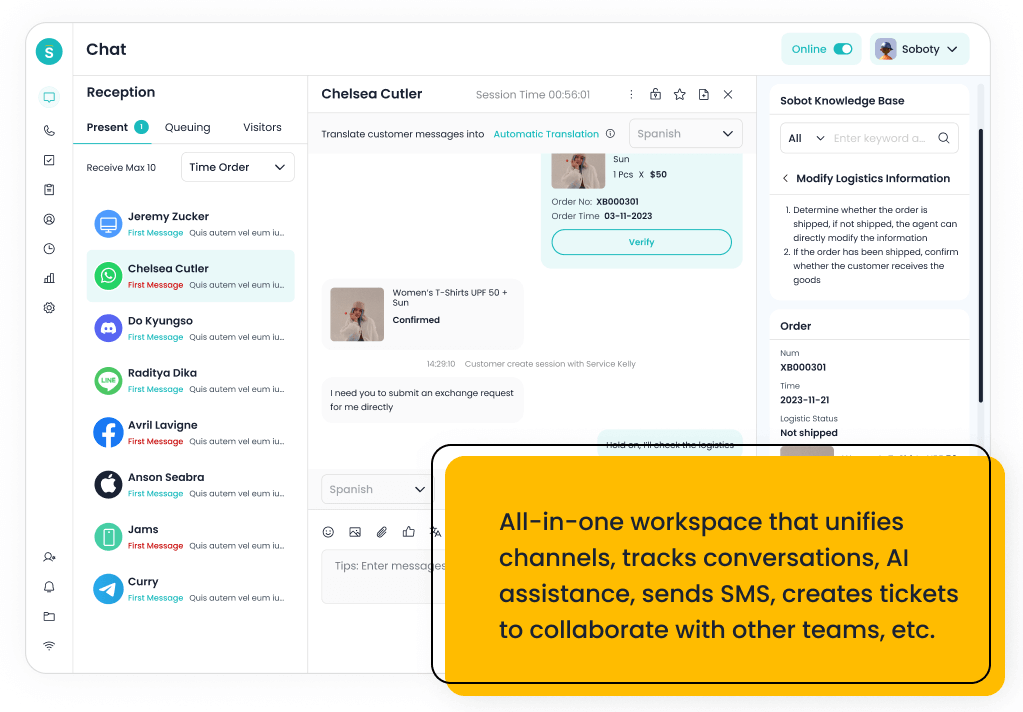
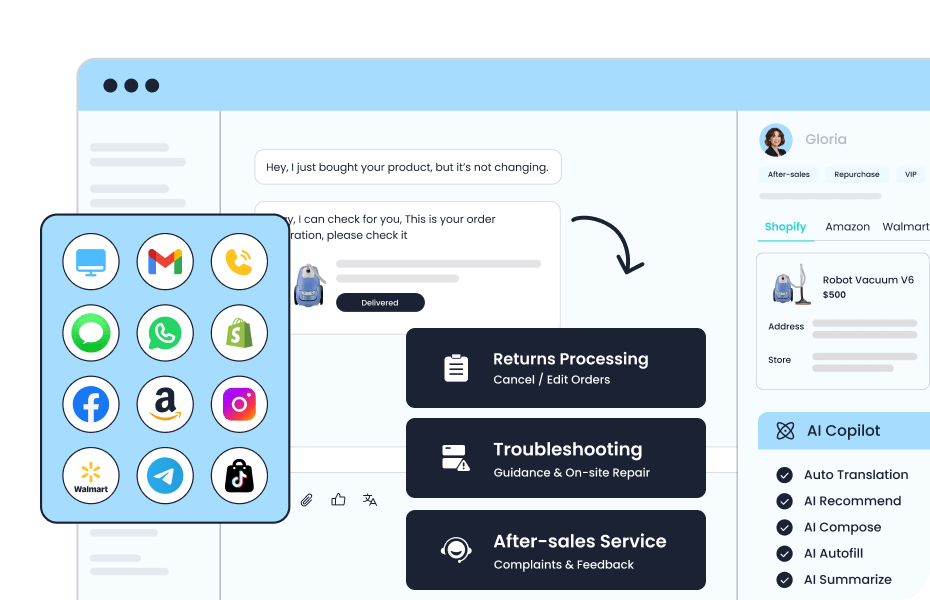
An AI chatbot for a website is a conversational entry point embedded in, or linked from, the site. It can answer questions using approved information, collect details needed for a service request, and route a conversation to a human team. Some deployments also read or update connected records after the visitor’s identity and permissions are checked. The AI chatbot widget may look like a small launcher, but it does not establish what the bot knows or can do. Those capabilities depend on its configuration, knowledge sources, integrations, and escalation design.
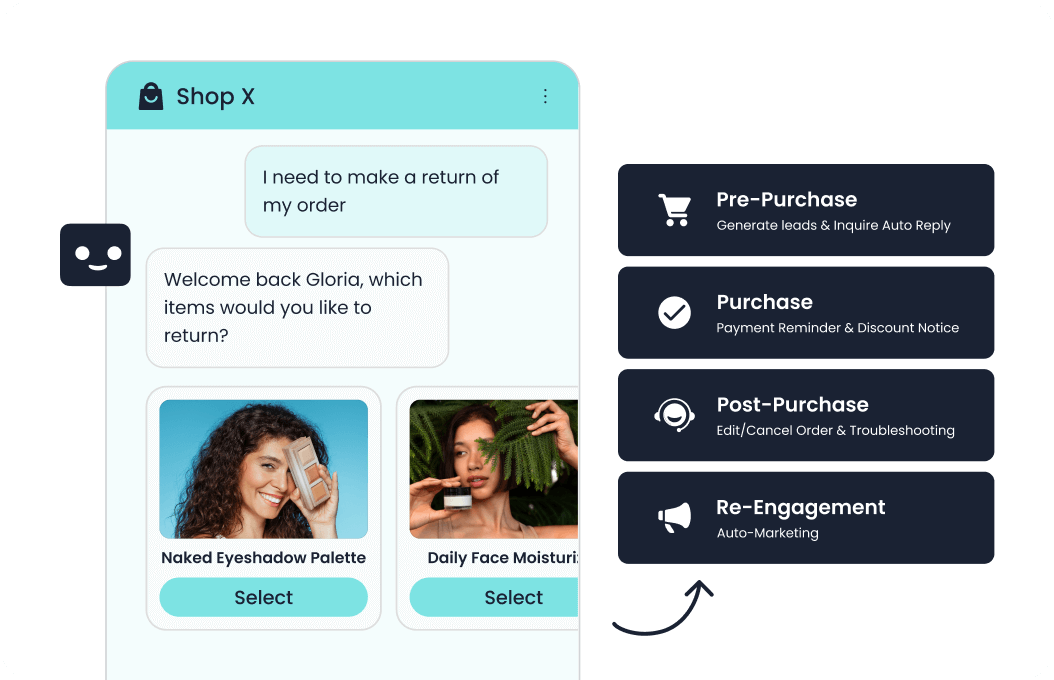
A website chatbot is therefore part of the service workflow rather than a separate answer box. A visitor asking about a return needs the current policy; a visitor asking about an order needs a verified route to account information. A helpful reply should either resolve the request or make the next step clear.
What Problem Should a Website Chatbot Solve?
Start with a repeated visitor question that the site does not answer conveniently: shipping terms, return eligibility, product fit, booking status, or where to get support. A chatbot can ask a clarifying question, point to the relevant policy, or send the visitor to the right team. Its advantage is the shorter route to a useful outcome, not the mere presence of a conversation window.
Write down the task, the source of truth, and what counts as success. For a return question, success may be the customer understanding the applicable policy or reaching an agent with order details already captured. For a product inquiry, it may be a qualified conversation with the sales team. If there is no reliable answer or owner for the exception, fix that gap before asking a bot to handle it.
A customer service AI chatbot for websites also needs a clear boundary. Public information can often be answered without identity checks. Account-specific status, changes to an order, refunds, and similar actions require the right access and confirmation.
How to Add an AI Chatbot to Your Website
These steps apply to a business website chatbot in general. The precise screen names and embed method vary by provider, plan, and site platform; copy the installation code or use the app supplied by the platform you actually choose. Do not use a generic script copied from an unrelated article.
Plan the service workflow
1. Define the first task and handoff. Choose a narrow request with a maintained answer. Identify who owns that answer, which details the bot may ask for, and when a person takes over. Include out-of-hours behavior: if no agent is available, say what happens next rather than leaving the visitor waiting in an open chat.
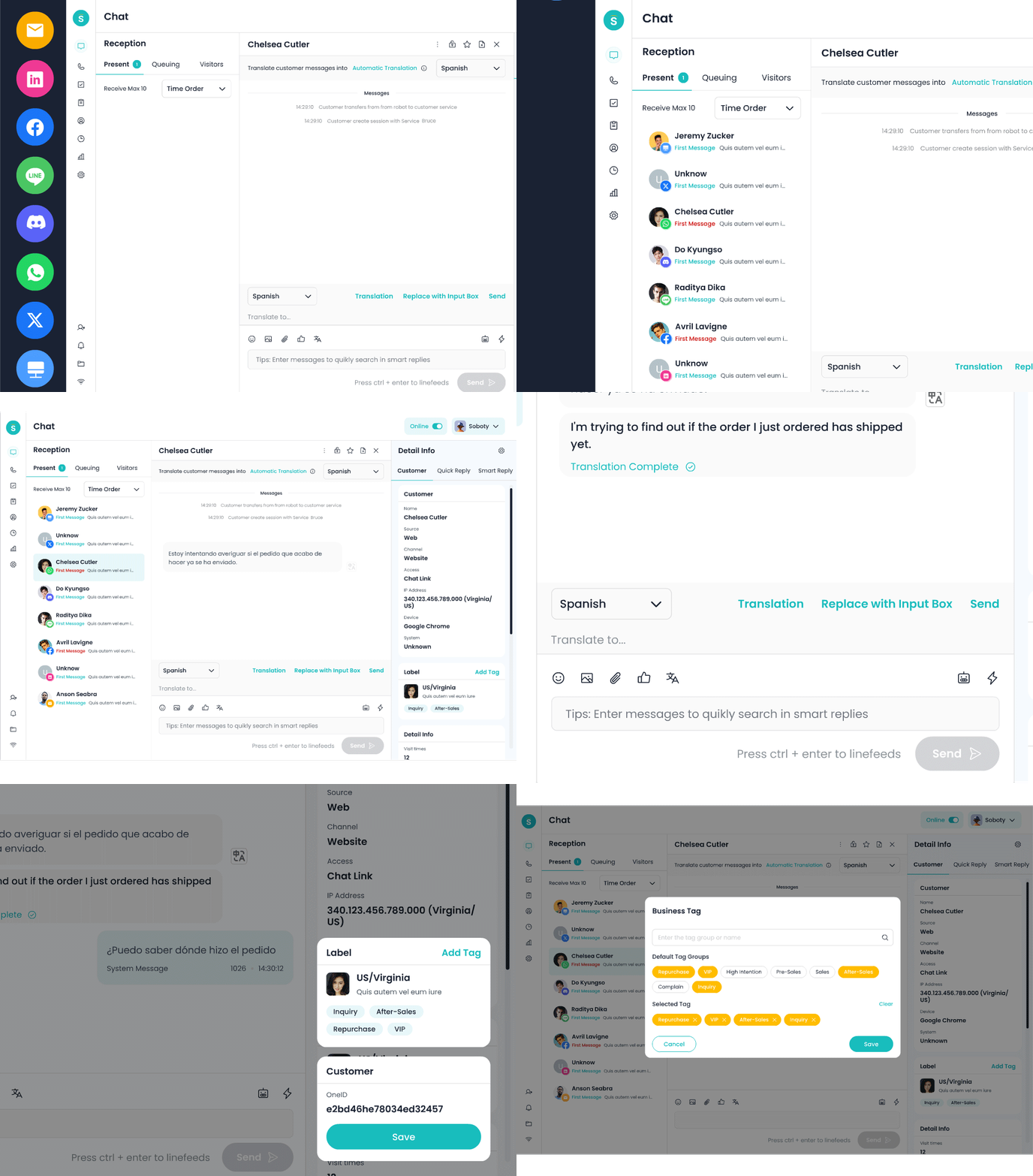
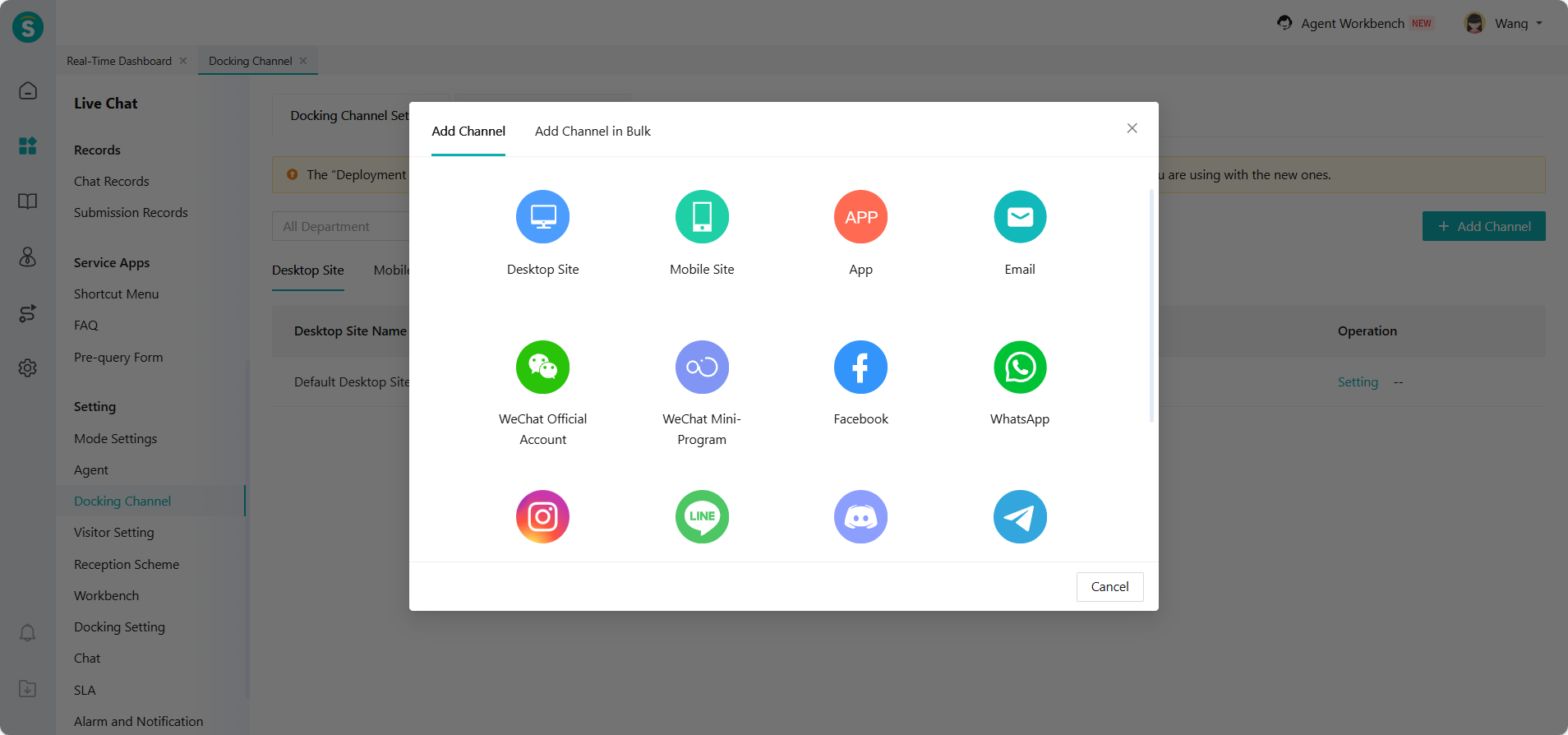
2.Configure the website channel. Sobot’s channel documentation describes separate desktop-site and mobile-site access through a web component or chat link. In any platform, select the correct website property or channel and check which site pages and languages it covers. A link can be appropriate when an embedded component is unsuitable; a persistent launcher can make support easier to find across service pages.
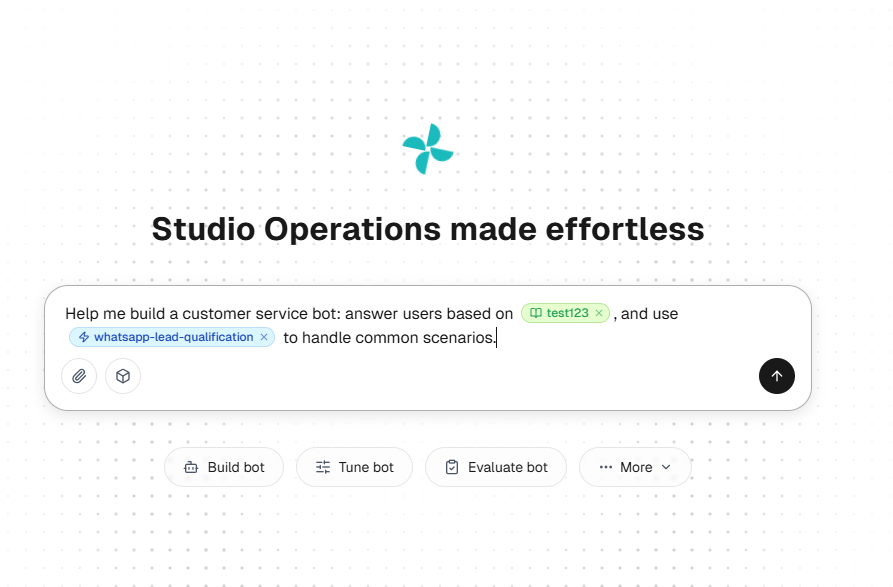
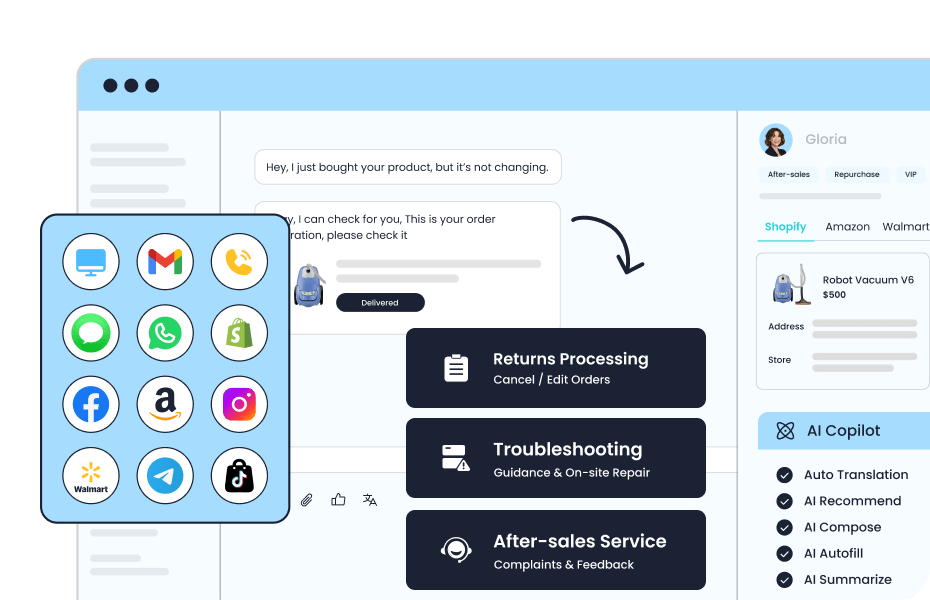
3.Connect approved answers and a human route. Add the current FAQ, policy, or product material needed for the first task. Test conflicting or missing information before launch. Set a handoff rule for unclear requests, account-specific questions, or actions the bot cannot safely complete. Salesforce’s chatbot guidance recommends passing relevant conversation history to agents so customers need not repeat themselves. Apply your privacy rules to that transfer.
Deploy and verify the website entry point
- Install the platform’s current web component or appCopy the installation instructions from your platform account or official product documentation. Have the website owner place the provided web component on the intended pages, or enable the provider’s approved app or plugin in the site’s admin area. For Shopify, Sobot’s docking guide describes installing its app and enabling the Chat Widget under theme app embeds. That is a Shopify path, not a universal set of clicks for every website.If a store uses a customized theme, confirm that its chosen theme supports Shopify app embed blocks and test the chat entry point after theme changes.
On a custom site, check how the component loads with the site’s consent, security, and performance settings. On a content management system, test the theme and any caching or script-management tools. Keep the generated code associated with the correct account and environment; an old snippet or a staging account can create a visible button that routes to the wrong team.
- Preview the widget and publish to a limited page setCheck the launcher, welcome text, closed and open states, message input, and handoff on both desktop and mobile. Sobot’s visitor-settings documentation describes previews by channel, integration method, theme, and bot or human-agent mode for its V7 visitor client. Because interface versions can differ, confirm the current controls in the account before applying the settings site-wide.
- Run a service test before expandingAsk representative questions, including one answerable request, an ambiguous request, an account-specific request, and a request the bot should escalate. Test on a narrow mobile viewport as well as desktop. Confirm that the agent receives the right context and that the visitor knows when the handoff is complete. Fix failed paths before adding more pages or more automated actions.
How Should the AI Chatbot Widget Look and Behave?
Make the launcher easy to recognize as a support option and keep its label consistent with what opens. Put it where it is visible without covering a checkout button, consent control, or mobile navigation. The greeting should name a useful task, such as “Ask about an order or return,” rather than promising an answer to anything. If the first response is automated, make that clear and keep the option to reach a person understandable.
Start with a quiet, user-initiated launcher on the pages where help is most useful. Add proactive prompts only for a specific visitor problem, such as confusion on a policy page, and limit repeat prompts so they do not interrupt reading. A trigger on every page or after an arbitrary delay can increase opens without improving outcomes. Compare task completion and visitor feedback before and after a trigger change.
W3C keyboard guidance calls for functionality to be operable by keyboard. Test the launcher, input, and close control.
If the widget behaves as a modal dialog, W3C’s modal-dialog pattern explains focus and return-to-trigger behavior. A nonmodal widget needs a different interaction test.
Best Practices After the Widget Goes Live
Assign an owner to the knowledge and another to conversation review. Update answers when policies or product details change. Review a sample of conversations that ended quickly, not just those escalated, because an abandoned chat can look like successful containment. Give agents a way to flag incorrect answers so the source material can be corrected.
Measure page performance with and without the widget, especially on mobile. Google’s web performance guidance explains that third-party scripts can add requests, block work, and affect page loading. Choose a loading approach with the vendor and site team, then verify the real visitor experience rather than assuming a small launcher has a small cost.
Google’s third-party privacy guide notes that external scripts can access page context. Limit collected fields, explain agent handoff, and review consent and retention rules.
Which Website Chatbot Metrics Matter?
- Starts show demand for the chosen task.
- Resolution and recontact show whether customers got help.
- Handoff quality and page performance expose costs hidden by opening rates.
| Measure | Question it answers | What to inspect with it |
|---|---|---|
| Qualified starts | Did visitors open chat for a relevant task? | Entry page, prompt, and task mix |
| Resolved tasks | Was the requested answer or action completed? | Conversation sample and recontact |
| Handoff completion | Did the right team receive the case and context? | Queue time and repeated questions |
| Customer feedback | Was the result understandable and useful? | Feedback by task, not only an overall average |
| Page performance | Did the widget slow or obstruct the site? | Mobile load and interaction checks |
Google’s INP guidance defines a page responsiveness measure; check it alongside mobile chat interactions.
Use a short pilot period to establish a baseline, then change one major variable at a time. A higher start rate with lower resolution may mean the widget is more prominent but less helpful. A lower bot-containment rate can be healthy if difficult cases reach the right person sooner.
Where Does Sobot Fit in a Website Deployment?
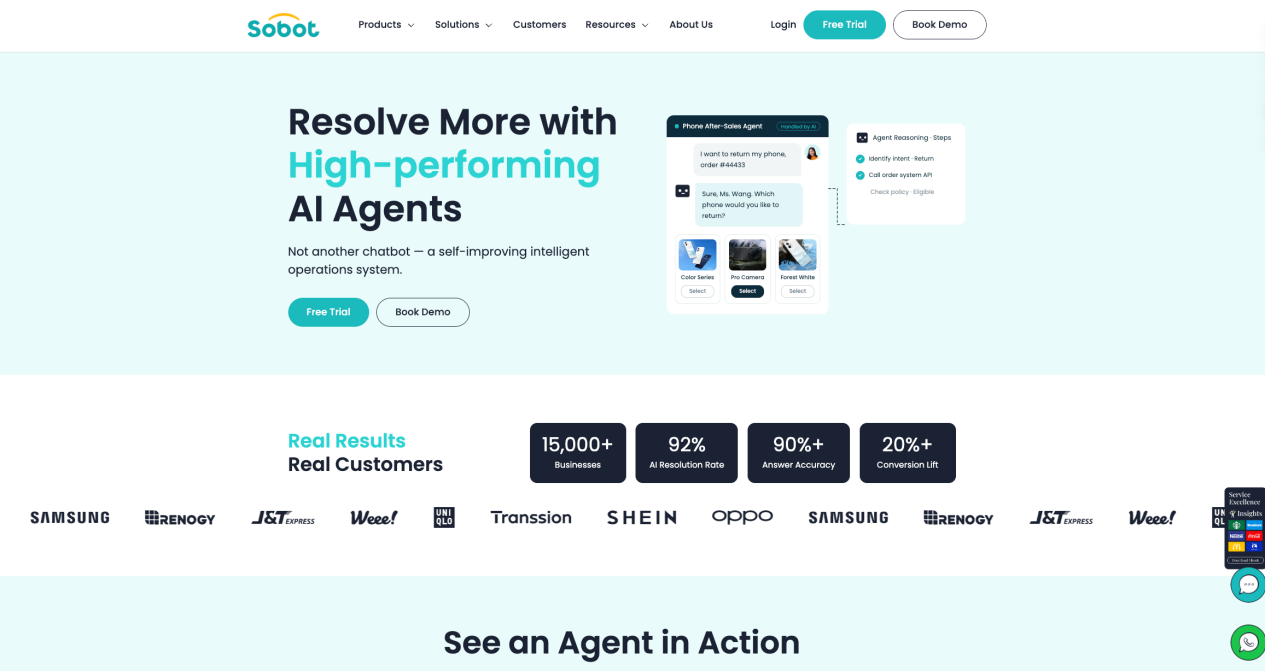
Sobot describes Messaging Agents for text-based customer interactions, while its official channel documentation covers website entry points and human-agent access. A website team can evaluate that combination against its own knowledge, channels, identity checks, handoff, and reporting needs. Confirm the current edition, widget settings, integrations, and implementation scope in a product review; public descriptions alone do not establish that every feature is enabled in every deployment.
Frequently Asked Questions
Do I need to code to add an AI chatbot to my website?
Often the visible widget can be added through a provider’s web component or a supported site-platform app. A custom website may still need a site owner to place and test the code. The larger work is preparing correct answers, access rules, human handoff, and ongoing review.
Should the chatbot appear on every page?
Start where the chosen task occurs, such as support, account, product-detail, or checkout-help pages. Test whether visitors can find help without covering important controls. Expand only when conversations from additional pages are useful and the team can support them.
What is the best AI chatbot for a website?
The best fit is the one that completes your first customer task reliably on your actual site. Compare candidates using the same questions, mobile layout, handoff path, data controls, reporting definitions, and total operating effort. A feature list or a polished demo cannot replace that test.