How to Set Up Live Chat Integrations via Zapier

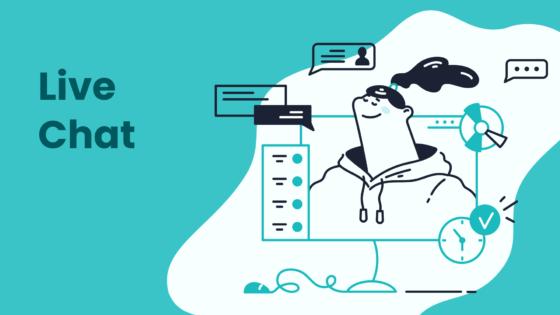
This guide offers a simple process for live chat integrations. You can connect your Sobot livechat to thousands of apps using Zapier. This powerful livechat integration uses a three-step workflow:
- Set a 'Trigger' from your livechat.
- Configure an 'Action' in another app.
- Activate the connection, known as a Zap.
This Zap automates tasks, sending livechat leads to your Sobot call center or creating tickets. With Sobot AI, you boost efficiency. Many teams already see great results; 37% of IT leaders report their customer service departments achieve higher automation ROI than other departments.
Prerequisites for Live Chat Integrations
Before you begin building powerful automations, you need to gather a few key items. Preparing these things now will make the setup process smooth and fast. Let's review what you need to get started with your live chat integrations.
An Active Sobot Live Chat Account
First, you need an active Sobot Live Chat account. Your livechat account is the starting point for every automation. It is where the initial customer interaction happens. Ensure your livechat is set up and you have access to your account settings. This access is crucial for connecting your livechat to Zapier. If you do not have an account yet, you can sign up for a free trial on the Sobot website. A working livechat is the foundation of this entire integration.
A Zapier Account
Next, you will need a Zapier account. Zapier is the bridge that connects your Sobot livechat to other applications. You can start with a free Zapier account. However, it is important to understand its limitations.
The free plan is great for simple connections. Keep in mind that it has some restrictions:
- It only allows for single-step Zaps, which means one trigger and one action.
- You cannot create complex workflows with multiple actions.
- Advanced features like filters or branching logic are not available.
For more advanced automations, you might consider a paid plan later.
Login Details for Your Target App
Finally, have your login details ready for the app you want to connect with your livechat. This is the "destination" app where your data will go. For example, you might send contact information to a CRM or log chat details in a spreadsheet. Having your username and password for that app on hand will save you time. This step ensures you can authorize the connection when Zapier prompts you.
Creating Your First Zap: The LiveChat Trigger
You are now ready for the exciting part: creating your first zap. This section guides you through setting up the trigger in Zapier. The trigger is the event in your Sobot Live Chat that starts your automation. Think of it as the "if this happens" part of your workflow. Let's begin creating your first zap.
Create a New Zap in Zapier
First, log into your Zapier dashboard. You will see a prominent button, usually in the top left corner, labeled "Create Zap" or "+ Create". Click this button. This action takes you to the Zap editor. Here, you will build your automated workflow step by step. This initial screen is your starting point for every new connection you make.
Select Sobot Live Chat as the Trigger
The Zap editor will first ask you to choose a trigger app. The trigger is the foundation of your zap.
- Find the search bar under the Trigger section.
- Type "Sobot Live Chat" into the search bar.
- Select Sobot Live Chat from the list of applications.
This tells Zapier to watch for an event in your livechat. This is a key step in setting up the trigger in Zapier.
Choose a Trigger Event
Next, you must tell your zap what specific event to look for. After selecting Sobot Live Chat, a new dropdown menu will appear labeled "Event". Click on it to see the available trigger options. These events are the specific activities within your livechat that can start your automation.
Example Trigger Events:
- New Conversation: Starts the zap whenever a new livechat conversation begins.
- Chat Ended: Triggers the zap when an agent or visitor closes a livechat.
- New Lead: Activates the zap when a visitor provides their contact information.
Choose the event that best fits your goal. For this guide, let's select "New Lead" as our trigger. This is a popular choice for automating sales and marketing tasks.
Authenticate Your Account
You now need to connect your Sobot Live Chat account to Zapier. This step authorizes Zapier to access data from your livechat. Click the "Sign in" button. A new window will pop up, asking for your credentials.
Finding Your Personal Access Token (PAT) To connect your account, you may need a Personal Access Token (PAT). This is a secure key that proves your identity. You can find it inside your Sobot account settings.
- Log in to your Sobot account.
- Navigate to the Settings or Admin panel.
- Look for a section named "API", "Developer", or "Integrations".
- Generate a new Personal Access Token and copy it.
Paste this token into the authentication window in Zapier to complete the connection.
Test Your Trigger
The final part of setting up the trigger in Zapier is to test it. This is a critical step. It confirms that Zapier can successfully pull information from your livechat. Click the "Test trigger" button.
Zapier will search for a recent example of the event you chose. If you selected "New Lead," it will look for a recent lead captured in your livechat. A successful test will display sample data, like a visitor's name, email, and the message they sent. Review this data to ensure it looks correct. A successful test of the zap means you are ready to move on to the next stage: configuring the action. This completes the process of creating your first zap's trigger.
Configuring the Action in Zapier
You have successfully set up your trigger. Now, you will move to the second major stage: configuring the action. This is where the real automation happens. The action is the task that Zapier performs in another app using the data from your Sobot Live Chat. This step turns your livechat lead into a tangible result, like a new CRM entry or a support ticket. Let's start configuring the action for your zap.
Select Your Action App
Your first step in configuring the action is to choose the destination app. This is the application where you want to send your livechat data.
- In the Zap editor, you will see a section labeled Action.
- Use the search bar to find your target application.
- Select the app from the search results.
For example, you might choose Google Sheets to log all your livechat contacts. You could also select a CRM to add new leads automatically. This choice defines where your automation will take place.
Choose the Action Event
After you select an app, you must specify what you want it to do. The "Event" dropdown menu will show you a list of possible actions for that app. Each app offers different action events.
Common Action Events:
- Create Spreadsheet Row: Adds a new row of data to a Google Sheet.
- Create or Update Contact: Creates a new contact in your CRM or updates an existing one.
- Send Channel Message: Posts a notification in a team communication tool.
For our example, if you chose Google Sheets, you would select "Create Spreadsheet Row". This tells the zap to add the information from your livechat as a new entry in your sheet.
Connect Your Action App Account
Next, you need to give Zapier permission to access your chosen app. Click the "Sign in" button to connect your account. A pop-up window will appear asking for your login credentials. The authentication method can vary between apps.
Heads-Up on Permissions 🔑 Some apps require an API key for connection. You can usually generate an API key in your app's admin settings, often under a section named "API" or "Developer." Other apps use a simpler login with your email and password. You may get an "Access Denied" error if your account has limited permissions. Ensure your account is an admin or has the necessary API access enabled.
This step is essential for allowing your zap to push data into the destination app.
Map Data Fields
This is the most important part of configuring the action. You will now tell your zap exactly where to put the data from your livechat. This process is called "mapping." You will match data from your trigger step to the fields in your action app.
Zapier will show you the fields available in your action app. For each field, you can click to see a dropdown list of data from your Sobot Live Chat trigger.
Example: Mapping Livechat Contacts to Google Sheets Imagine your Google Sheet has columns for "Name," "Email," and "Inquiry." You would map the fields like this:
- In the Name row, select the
Visitor Namefield from your Sobot Live Chat trigger data.- In the Email row, select the
Visitor Emailfield.- In the Inquiry row, select the
Initial Messagefield.
This mapping ensures that every time a new livechat lead comes in, the visitor's name, email, and message create a new, organized row in your spreadsheet. This creates a seamless flow of information for your contacts. Properly mapping fields is key to a successful automation for your contacts.
Test the Action
Finally, you must test your action. This step sends a real piece of data from your trigger to your action app. It confirms that your mapping works correctly and the zap runs as expected. Click the "Test action" button.
After the test runs, go to your destination app. Check if the sample data from your livechat appeared correctly. Did a new row appear in your spreadsheet? Was a new contact created in your CRM? This test verifies the entire workflow for your contacts.
Troubleshooting Common Test Errors Sometimes, a test might fail. Here are a few common issues:
- Empty Fields: An action may fail if an optional field, like a phone number, is empty. You can use a Zapier filter to ensure the field exists before the action runs.
- Webhook Errors: You might see an error like "A form may only have one webhook." This often happens with ad forms. You may need to clear the old webhook in your ad platform's settings.
- Permission Issues: If the test fails, double-check that the connected account has the right permissions to create or update contacts.
Testing is a crucial part of configuring the action. It helps you catch and fix problems before you activate your zap, ensuring your livechat automation for new contacts is reliable.
Activating Your Zap and Popular Ideas
You have tested your trigger and action. The final step is launching the zap. This brings your automation to life. Once you activate it, your live chat integrations will run automatically in the background. Let's explore how to do this and review some popular livechat zaps.
Name and Publish Your Zap
Before launching the zap, give it a clear name like "Sobot Livechat Leads to CRM." This helps you identify it later. Once you are ready, find the switch at the top or bottom of the editor to turn the zap on. This simple action completes the setup. Launching the zap means your workflow is now active.
Add Leads to a CRM
One of the most popular livechat zaps is sending new leads directly to your CRM. This integration ensures your sales team gets information instantly. A Harvard Business Review study found that companies responding within an hour are seven times more likely to qualify leads. This zap helps you capture contacts at their peak interest. Your Sobot livechat captures the lead, and the zap creates new contacts in your CRM without any manual work.
Create Support Tickets
You can automate ticket creation from your livechat. This zap connects your livechat to a tool like Sobot's Ticketing System. When a livechat conversation needs follow-up, the zap can create a ticket with the chat transcript.
An automated message can fire almost instantly so customers know their question was received. This action provides an immediate first response, even if your agents are busy.
This keeps your support process organized and ensures no customer request is lost.
Send Team Notifications
Keep your team in the loop with this simple zap. You can set up a zap to send a message in a team chat app whenever a new livechat starts. This is useful for "all hands on deck" support or for notifying a sales channel about a hot lead from the livechat. This keeps everyone aware of incoming contacts.
Log Chats in a Spreadsheet
Automatically logging livechat transcripts is one of the most useful popular livechat zaps. This zap sends chat details to a spreadsheet, creating an organized record of all contacts. This process offers several benefits:
- It eliminates manual entry errors.
- It maintains an accurate record of client interactions.
- It allows your team to focus on growth, not administrative tasks.
This simple integration turns your livechat data into a valuable asset for analysis.
Build an Email List
You can use your livechat to grow your email list. This zap connects your livechat to your email marketing platform. When a visitor provides their email to get information, the zap automatically adds them as new contacts to your mailing list. This is an effortless way to build your audience with interested prospects from your livechat. Launching the zap for this purpose is a smart marketing move.
You now know how to build your first zap. You set a trigger from your livechat, configured an action, and published the zap. This powerful integration automates your livechat workflows. These live chat integrations connect your livechat to essential tools, boosting team productivity and creating a connected experience.
Embark on your automation journey! Explore what your Sobot livechat and Zapier can do together. 🚀
FAQ
Can I create multi-step Zaps with a free Zapier account?
No, you cannot create multi-step Zaps on the free plan. The free Zapier account only supports single-step Zaps. This means you can have one trigger and one action. For more complex workflows, you will need a paid Zapier plan.
What if my app is not listed on Zapier?
If your app is not on Zapier, you can explore other options. Many apps offer a feature called "webhooks."
You can use webhooks to build a custom integration. This is an advanced method but offers great flexibility for connecting unsupported applications.
How many live chat integrations can I create?
You can create as many live chat integrations as you need. The number of active Zaps you can run depends on your Zapier plan. Each plan offers a different limit on the number of Zaps and the tasks they can perform per month.
See Also
Boost Your Shopify Sales Performance Using Dynamic Live Chat Features
Effortlessly Connect with a Live Chat Agent for Instant Support
Seamlessly Populate Live Chat Pre-Chat Forms with Essential Customer Data
Become a Live Chat Expert for Superior Customer Service Excellence
Explore 12 Top Live Chat Applications for Unlocking Shopify Success