Easy Fixes for Facebook Chat Website Not Showing Up

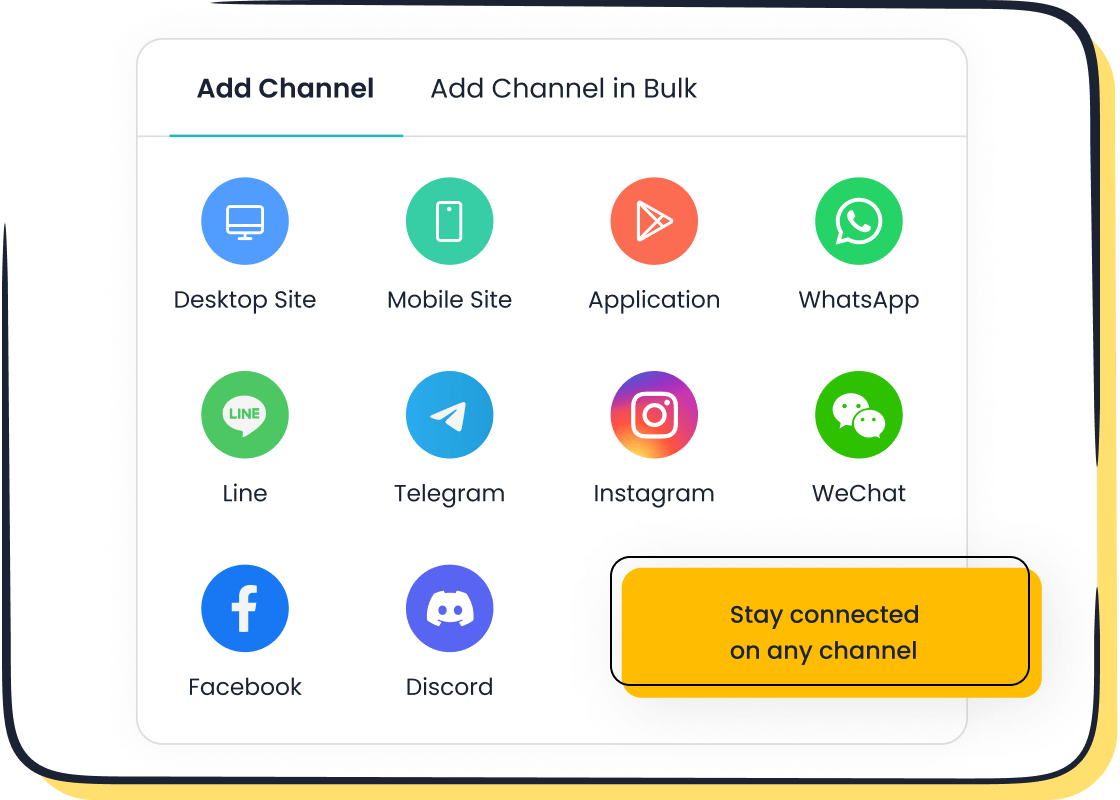
You feel frustrated when your Facebook chat plugin disappears. You want customers to reach you fast. Don’t worry. You can add facebook chat website tools again in just minutes. Sobot, Sobot AI, and Sobot call center help you stay connected. Most fixes need no tech skills at all.
Why Facebook Chat Plugin Issues Happen
Common Causes
You might wonder why the Facebook chat plugin sometimes just vanishes from your website. Many things can cause this, but some problems show up more often than others. Here’s a quick look at the most common reasons:
| Issue Type | Description |
|---|---|
| Installation Errors | Missing or incorrect code snippets can prevent the plugin from functioning. |
| Plugin Compatibility Issues | Conflicts with outdated plugins or themes may disrupt the Messenger plugin's functionality. |
| Display Problems | The chat widget may not show due to browser settings or ad blockers. |
| Functionality Glitches | Messages may fail to send or receive due to connection issues or Facebook Page status. |
| Integration Challenges | Issues connecting to the Facebook Page can arise from incorrect settings or permissions. |
| Conflicts with Other Website Plugins | Other plugins may interfere with the Messenger widget's display or functionality. |
You may also run into these top five causes:
- Errors with your Facebook login status.
- Problems with SDK initialization.
- Domain whitelisting mistakes.
- Using the wrong version of the Facebook JS SDK.
- Bugs in the Facebook JS SDK.
Sometimes, incorrect permissions or missing code placement can block the chat plugin from showing up. Always make sure you follow the right steps when setting up permissions.
Quick Checks
Before you dive into deep troubleshooting, try these quick checks. They can help you spot the most common issues fast:
- Open your Facebook Page settings. Go to 'Advanced Messaging' and make sure the Messenger platform is enabled.
- Look at your API token. Tokens can expire, so you might need to generate a new one.
- Double-check that your plugin links to the correct Facebook Page, especially if you manage more than one.
- Turn off other website plugins one by one. This helps you find out if another plugin is causing problems.
- Inspect your website’s HTML. Make sure the Messenger plugin code sits right before the closing
</head>tag.
Tip: If you fix these simple things, you can often solve most chat plugin issues in just a few minutes.
Troubleshooting Facebook Messenger Live Chat Plugin
Are you tired of seeing the facebook messenger live chat plugin disappear from your website? You want your customers to reach you fast, but errors and display problems keep getting in the way. Let’s walk through a step-by-step guide to troubleshooting common issues and get your chat widget working again.
Verify Installation
First, you need to check if you installed the facebook messenger live chat plugin correctly. Many installation errors happen because the code sits in the wrong spot or gets left out. Here’s a step-by-step guide to verifying plugin functionality:
- Open your website’s HTML file.
- Look for the facebook messenger live chat plugin code. It should be right before the closing
</body>tag. - Make sure the code matches the official Facebook example.
To confirm that the facebook messenger live chat plugin code is placed correctly, ensure that the following code is included in the HTML:
<!DOCTYPE html>
<html>
<head>
<title>Otto Bot</title>
<meta name="viewport" content="width=device-width, initial-scale=1.0">
</head>
<body>
<!-- Load Facebook SDK for JavaScript -->
<div id="fb-root"></div>
<script>(function (d, s, id) {
var js, fjs = d.getElementsByTagName(s)[0];
if (d.getElementById(id)) return;
js = d.createElement(s); js.id = id;
js.src = 'https://connect.facebook.net/es_LA/sdk/xfbml.customerchat.js#xfbml=1&version=v2.12&autoLogAppEvents=1';
fjs.parentNode.insertBefore(js, fjs);
}(document, 'script', 'facebook-jssdk'));</script>

<!-- Your customer chat code -->
<div
class="fb-customerchat"
attribution="setup_tool"
page_id="<MY-PAGE-ID>"
logged_in_greeting="Hablemos?"
logged_out_greeting="Hablemos?"
minimized='false'>
</div>
</body>
</html>
If you see missing lines or typos, fix them and save your changes. Refresh your website and check if the chat widget appears. Many installation errors come from copying the code wrong or pasting it in the wrong place.
Don’t forget to clear your browser cache after making changes. Old cached files can cause display problems and make it look like your fixes didn’t work.
Check Compatibility
Plugin compatibility issues can stop the facebook messenger live chat plugin from working. You might have updated your website or installed new plugins, and now the chat widget is gone. Here are some troubleshooting tips for checking compatibility:
- Make sure your website platform supports the facebook messenger live chat plugin. Some older CMS versions or custom themes block new plugins.
- Update your website and all plugins to the latest version. Outdated software causes errors and display problems.
- Check the plugin documentation for any special requirements. Sometimes, you need to enable certain settings or permissions for the chat widget to show up.
If you use WordPress, plugin compatibility issues are common. Always check if the facebook messenger live chat plugin works with your current WordPress version. You can find this info on the plugin’s official page or documentation.
Tip: If you run into plugin compatibility issues, try disabling other plugins one by one. This helps you spot which plugin causes the problem.
Resolve Plugin Conflicts
Sometimes, other plugins on your website fight with the facebook messenger live chat plugin. These conflicts can lead to installation errors, display problems, or even make the chat widget vanish. Here’s how you can troubleshoot plugin conflicts:
- Check Plugin Compatibility: Make sure the facebook messenger live chat plugin matches your website’s platform and version.
- Clear Cache: Delete your browser and website cache to fix loading errors.
- Review Settings: Double-check all plugin settings for mistakes or missing info.
- Disable Conflicting Plugins: Turn off other plugins one at a time to find the troublemaker.
- Update the Plugin: Always use the latest version of the facebook messenger live chat plugin.
If you want a more detailed step-by-step guide, follow these best practices:
- Check for Updates: Update all plugins and your CMS regularly.
- Review Plugin Documentation: Read the instructions for each plugin before installing.
- Use Debugging Tools: Open your browser’s console log or CMS error logs to spot errors.
- Contact Plugin Developers: If you find a conflict, reach out for help. Developers often have solutions.
- Test in a Staging Environment: Try new plugins on a test site before adding them to your live website.
- Backup Regularly: Save copies of your website often to protect against unexpected errors.
Note: Testing in a staging environment helps you avoid downtime and keeps your customer contact smooth.
Troubleshooting Widget Visibility
Sometimes, you fix installation errors and plugin compatibility issues, but the facebook messenger live chat plugin still won’t show up. This is a common problem. Here’s how you can troubleshoot widget visibility:
- Make sure your Facebook Page is published and active.
- Check your domain whitelisting settings in Facebook Page admin.
- Verify that your API token is valid and not expired.
- Look for ad blockers or browser extensions that might hide the chat widget.
If you still see issues, try opening your website in a different browser or device. Sometimes, browser-specific errors block the chat widget.
Verifying Plugin Functionality
After you finish troubleshooting common issues, you need to test if the facebook messenger live chat plugin works for your visitors. Ask a friend or coworker to send a test message. Check if you receive it on your Facebook Page. If everything works, you solved the problem!
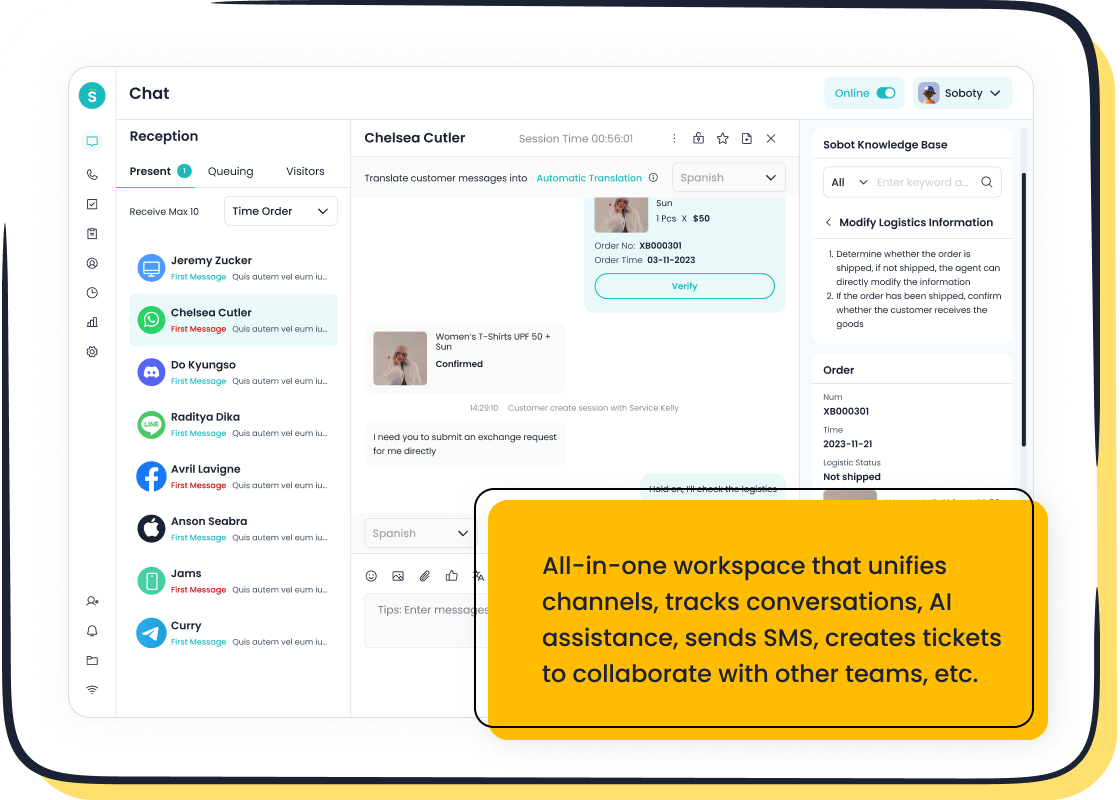
If you want a more reliable and unified customer contact solution, consider Sobot Live Chat. Sobot Live Chat supports websites, apps, and social media platforms like Facebook, WhatsApp, and Instagram. You get a unified workspace, AI-powered tools, and built-in analytics. Sobot Live Chat helps you respond faster, boost conversion rates, and keep all conversations in one place. You can learn more about Sobot’s omnichannel solution here.
Sobot’s platform lets you manage customer messages from Facebook, your website, and other channels in one dashboard. You don’t need to worry about plugin compatibility issues or installation errors. Sobot Live Chat offers customizable widgets, auto-translation, and satisfaction surveys. You can even try it for free at Sobot Live Chat.
If you want to extend your customer lifecycle and increase revenue, Sobot’s all-in-one contact center solution is a smart choice. Sobot also provides a ticketing system, WhatsApp Business API, and voice call center features. These tools help you deliver seamless support and keep your customers happy.
Pro Tip: Regular troubleshooting and testing help you avoid future errors and keep your facebook messenger live chat plugin running smoothly.
Add Facebook Chat Website: Setup and Integration

Adding the Facebook chat plugin to your website can feel tricky, but you can do it step by step. You want your customers to reach you easily, and a working chat widget helps you stay connected. Let’s walk through the right way to add facebook chat website tools, fix common issues, and explore how Sobot Live Chat can make your customer service even better.
Correct Code Placement
You need to place the Facebook chat plugin code in the right spot on your website. If you put it in the wrong place, the chat widget might not show up at all. Many issues happen because of this simple mistake. Here’s how you can add facebook chat website code correctly:
- Open your website’s theme or page editor.
- Find the
<body>tag in your HTML code. - Paste the Facebook chat plugin code directly under the
<body>tag. - Save your changes.
For example, if you use Shopify or another website builder, you can:
- Go to the Themes section and select Customize.
- Click Theme Actions and choose Edit Code.
- Scroll until you see the
<body>tag. - Paste the chat plugin code right below it.
- Save your work.
If you don’t place the code correctly, the chat plugin may not load. This can cause visibility issues and make it hard for customers to contact you.
Always double-check your code placement. Refresh your website after saving. If you still see issues, clear your browser cache and try again. Sometimes, old files can block new changes from showing up.
Facebook Page Settings
Before you add facebook chat website features, you need to set up your Facebook Page settings. If you skip this step, you might run into issues where the chat plugin does not appear or work as expected. Here’s what you should do:
- Go to your Facebook Page and open Settings.
- Click on the Messages section.
- Make sure you check the box that says “Allow people to contact my Page privately by showing the Message button.”
You also need to whitelist your website domain. This tells Facebook where to show your chat plugin. Follow these steps:
- Log in as an admin on your Facebook Page.
- Select Inbox from the left menu.
- Click the Chat Plugin button at the top.
- Enter your website’s domain and click Set up.
- Choose your setup method:
- Add the plugin to your WordPress homepage.
- Use Google Tag Manager.
- Use the Standard method with the Facebook SDK for JavaScript.
Tip: If you manage more than one website, make sure you whitelist each domain. Missing this step can cause issues with the chat plugin not showing up.
If you ever change your website’s address, remember to update your Facebook Page settings. Keeping your settings up to date helps prevent future issues and keeps your chat plugin running smoothly.
Sobot Live Chat Integration
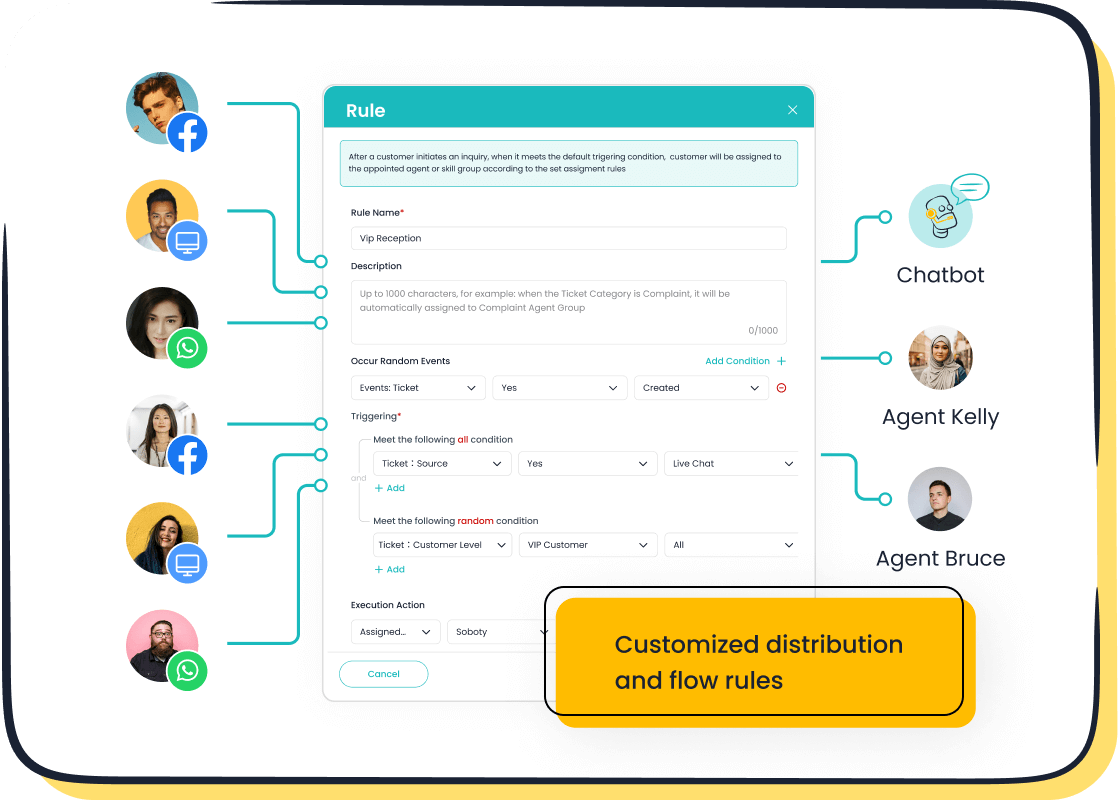
You want more than just a basic chat box. You want to add facebook chat website tools that connect all your channels in one place. Sobot Live Chat gives you this power. It lets you manage messages from Facebook, your website, WhatsApp, Instagram, and more—all in a single workspace.
Sobot Live Chat does more than solve issues with plugin installation. It brings all your customer conversations together. You can answer questions faster, track every chat, and never miss a message. The platform uses AI-powered chatbots to help customers even when you’re offline. You also get detailed analytics, so you can see how well your team is doing and where you can improve.
Here’s a quick look at how Sobot Live Chat compares to the standard Facebook chat plugin:
| Benefit | Sobot Live Chat | Facebook Chat Plugin |
|---|---|---|
| Automation | AI chatbot answers common questions | Limited automation |
| Analytics | 150+ indicators for performance | Basic analytics |
| Integration | Connects with CRM and other systems | Few integration options |
| Customer Engagement | Omnichannel (web, social, apps) | Facebook only |
With Sobot, you don’t just add facebook chat website features—you create a full customer contact center. You can set up auto-translation, satisfaction surveys, and even connect your CRM for personalized service. Sobot’s omnichannel solution helps you avoid issues that come from juggling too many tools.
Sobot Live Chat supports over 10,000 brands worldwide. Companies like Samsung, HP, and Michael Kors trust Sobot to handle millions of chats every day. You can try Sobot Live Chat for free and see how it can help your business grow.
If you want to add facebook chat website tools and avoid common issues, Sobot Live Chat is a smart choice. You get a unified workspace, faster response times, and happier customers. You can learn more about Sobot’s omnichannel solution on their official website.
Facebook Chat Plugin for WordPress and Other Platforms
WordPress-Specific Issues
You might use WordPress for your website. The facebook chat plugin for wordpress can help you connect with visitors, but sometimes you run into common issues. You may see plugin conflicts, theme compatibility problems, or JavaScript errors. Your Facebook app settings might not be set up right. Cache issues can also block the facebook messenger chat plugin for wordpress from showing up.
Here’s a quick checklist to help you fix these problems:
- Deactivate the Facebook for WooCommerce plugin if you use it.
- Reset WordPress options by clearing certain values.
- Reactivate the facebook chat plugin for wordpress after resetting.
- Clear your browser cache and website cache.
- Create a new Pixel in Facebook Events Manager.
- Exclude Instagram when connecting your facebook messenger chat plugin for wordpress.
If you follow these steps, you can solve most issues fast. Always check your theme and plugin compatibility before you install the facebook chat plugin for wordpress.
Other CMS Platforms
You may use other platforms like Shopify, Wix, or Joomla. The facebook chat plugin for wordpress works differently on each system. You need to check if your CMS supports the facebook messenger chat plugin for wordpress. Some platforms need you to paste the code in a special spot or update settings. If you see issues, look for plugin conflicts or outdated software. Always clear your cache and test the facebook chat plugin for wordpress after making changes.
Sobot Omnichannel Solution
You want a smooth experience for your customers. Sobot’s omnichannel solution brings all your contact channels together. You can manage chats from your website, social media, and apps in one place. Sobot connects with your CRM and ERP, so you see customer history and give personalized service. You don’t need to worry about plugin issues or switching between pages.
| Feature | Description |
|---|---|
| Unified Platform | Manage all customer chats from different sources in one dashboard. |
| Service Efficiency | Respond to customers quickly without switching tabs. |
| Personalized Experience | Access customer history for tailored support. |
| Consistent Interaction | Connect with customers across websites, apps, and social media. |
Sobot helps you avoid common issues with the facebook chat plugin for wordpress. You get a unified workspace and better customer engagement.
Preventing Future Issues
Regular Testing
You want your website chat to work every time. Regular testing helps you catch problems before your customers do. Set a reminder to check the chat plugin every week. Open your site on different devices and browsers. Try sending messages and see if you get notifications right away. If you notice messages not sending or delayed notifications, you can fix them fast. Testing also helps you spot any drop in performance or new issues after updates. Make sure you test after changing themes or adding new plugins. This habit keeps your chat running smoothly and your notifications reliable.
Keep Plugins Updated
Updates matter for plugin performance and security. When you skip updates, you risk running into problems like facebook chat plugin not working or messages not sending. Always check for updates to your chat plugin, your website platform, and your browser. Updates often fix bugs, improve performance, and help with fixing notification delays. Turn on automatic updates if your platform allows it. After each update, do some quick testing to make sure notifications still work and there are no new problems. Staying updated means you spend less time fixing issues and more time helping your customers.
Best Practices
You can prevent most issues by following a few best practices. First, monitor plugin performance and watch for any drop in notifications or performance. Survey your customers to learn which channels they like best. If you see messages not sending or delayed notifications, consider using other tools like contact forms or AI chatbots. Make sure your email support is easy to find. Use testing to check for problems after every change. Here are some tips to keep your chat plugin working well:
- Test notifications and chat features often.
- Update plugins and website software regularly.
- Watch for delayed notifications and fix them quickly.
- Survey customers about their needs.
- Explore new ways to connect, like Messenger links or other social platforms.
Tip: Consistent testing and monitoring help you catch problems early and keep your chat plugin’s performance strong.
You fixed most Facebook chat plugin issues by checking installation, compatibility, and functionality. Regularly test the functionality to keep your chat running. Functionality matters for customer support. If you want better functionality, try Sobot Live Chat. You get unified functionality, improved functionality, and seamless functionality for every customer interaction.
FAQ
How do I know if the Facebook chat plugin is working on my website?
You can open your website in a browser and look for the Messenger chat box. If you see it, the plugin works. Test by sending a message.
Why does the plugin disappear after I update my website?
Sometimes, a website update changes code or settings. The plugin may need to be reinstalled or updated. Always check plugin compatibility after updates.
Can I use the Facebook chat plugin with other plugins on my website?
Yes, you can use the plugin with other plugins. Sometimes, conflicts happen. Test your website after adding new plugins to make sure everything works.
See Also
Quick Solutions For Shopify Live Chat Problems
Easily Resolve Issues With Pre-Chat Live Forms
Best Tools For Integrating Social Media Chats Online